Approve and undo a fix
Read a fix plan, approve and run its steps, undo one, and find every decision in the log.
1. Open Remediation
Select Remediation in the dock. Fix plans for your alerts wait here for approval.NixGuardDashboard

The NixGuard app, with example data.
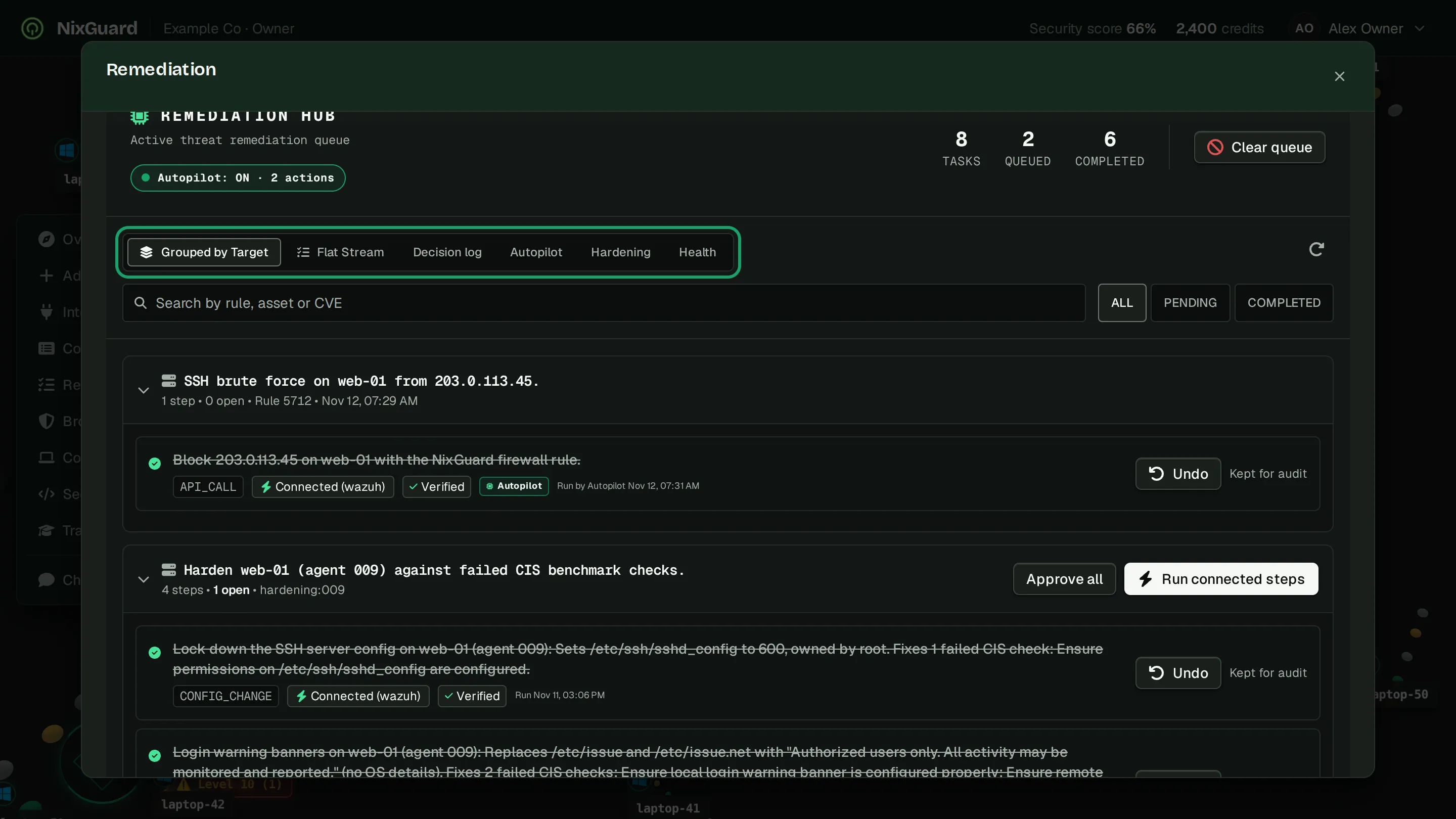
2. Read the fix plans
Grouped by Target shows each alert or target with the steps of its fix plan, and for each step whether it has run and been verified.NixGuardRemediation
The NixGuard app, with example data.
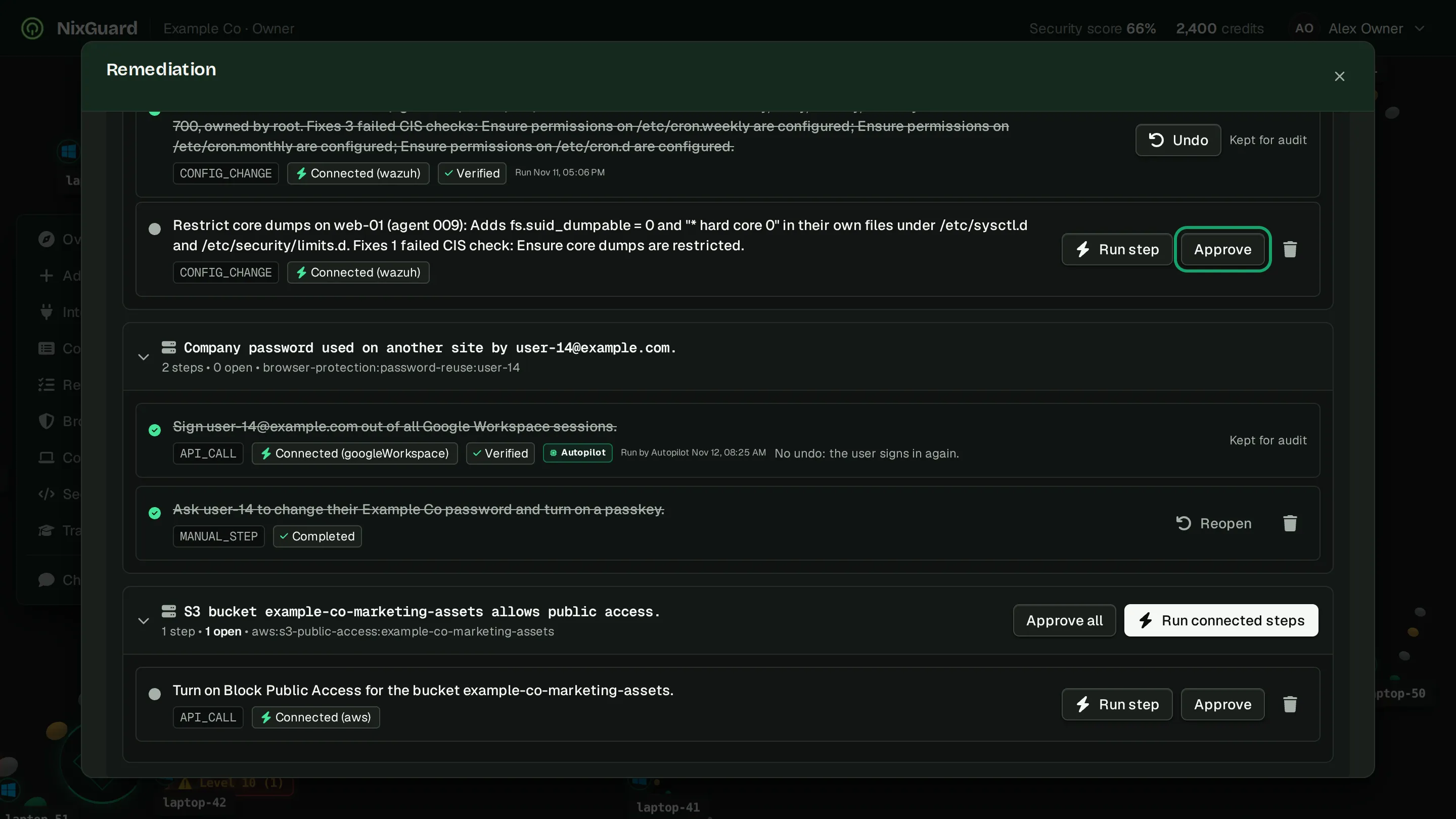
3. Approve or run a step
A step that has not run shows Approve and, when its system is connected, Run step. Only an owner or admin can approve a step, and the approval is bound to that exact step.NixGuardRemediation
The NixGuard app, with example data.
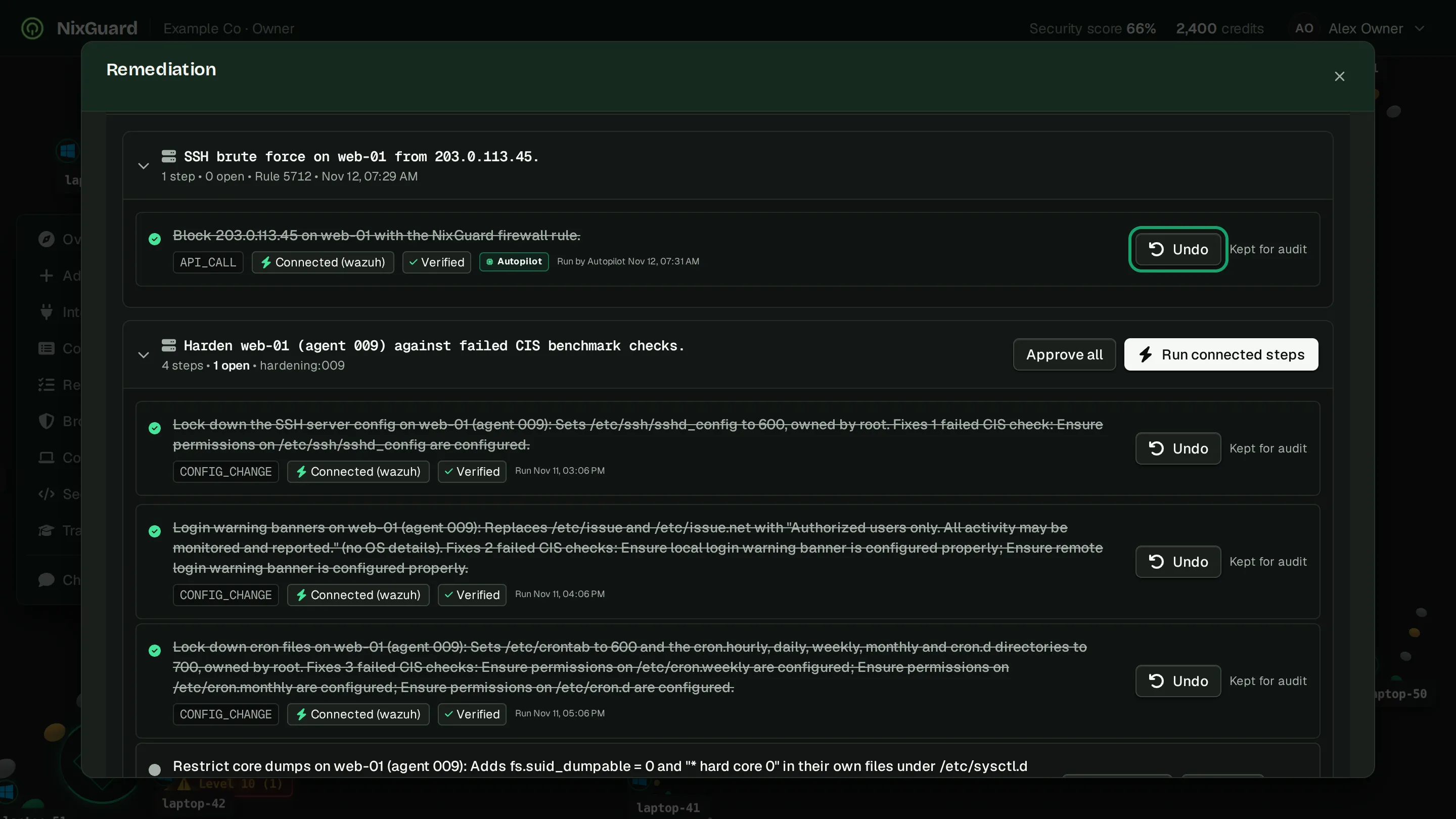
4. Undo a step
After a step has run, Undo puts back what it changed, for the actions that can be undone. A step that cannot be undone says so.NixGuardRemediation
The NixGuard app, with example data.
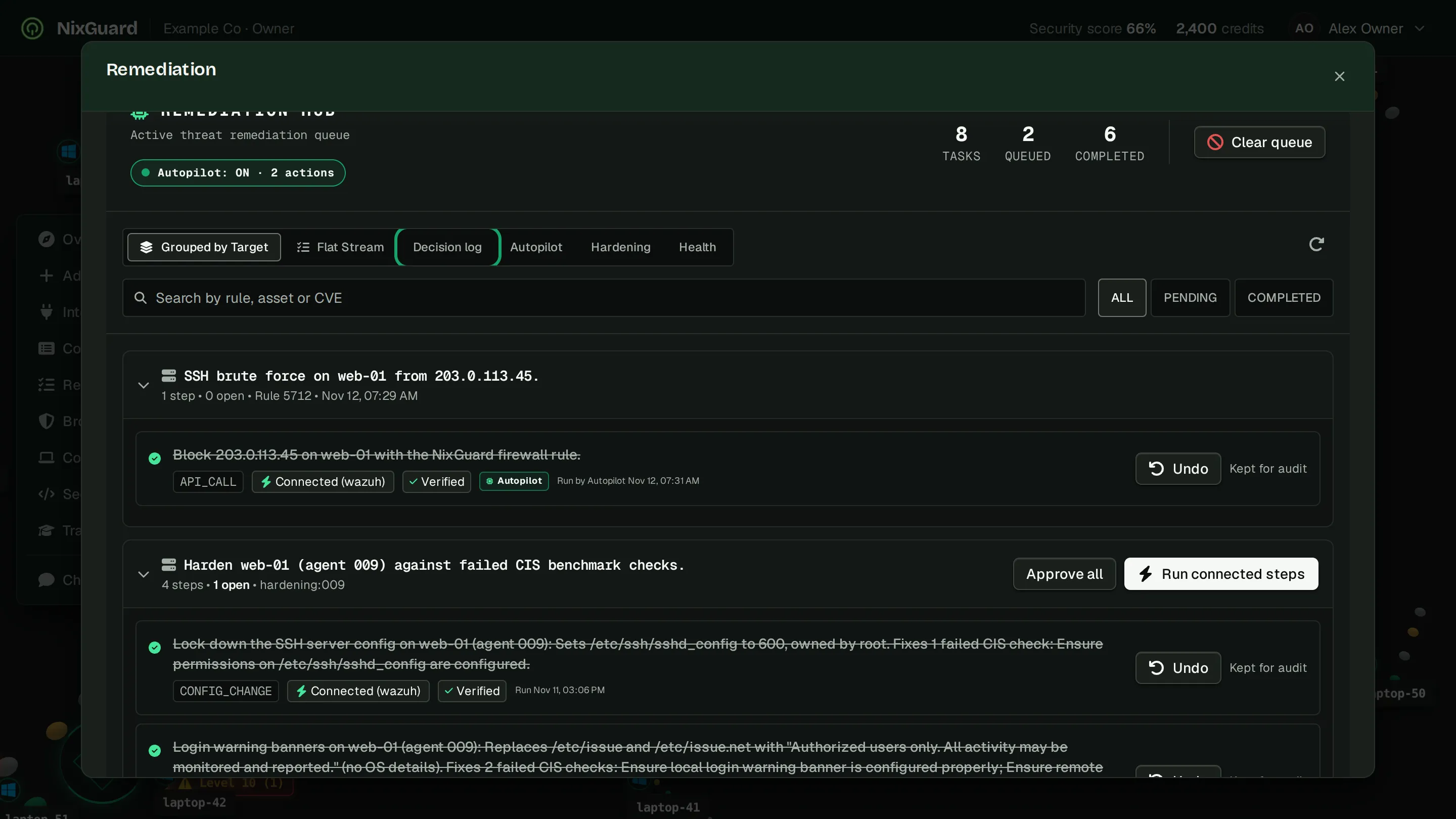
5. Find it in the decision log
Select Decision log for the record of each decision: when, the action, its target, why and the outcome. It can be exported as a CSV file.NixGuardRemediation
The NixGuard app, with example data.