See and protect the devices on your network
Install the NixGuard desktop app on a computer on your network and ask Nix to scan it, or select Scan my network under This computer. Then, in the app:
1. Open Network devices
Select Network devices in the dock. It lists every device the desktop app found on your networks, including the ones that cannot run a security agent.NixGuardDashboard
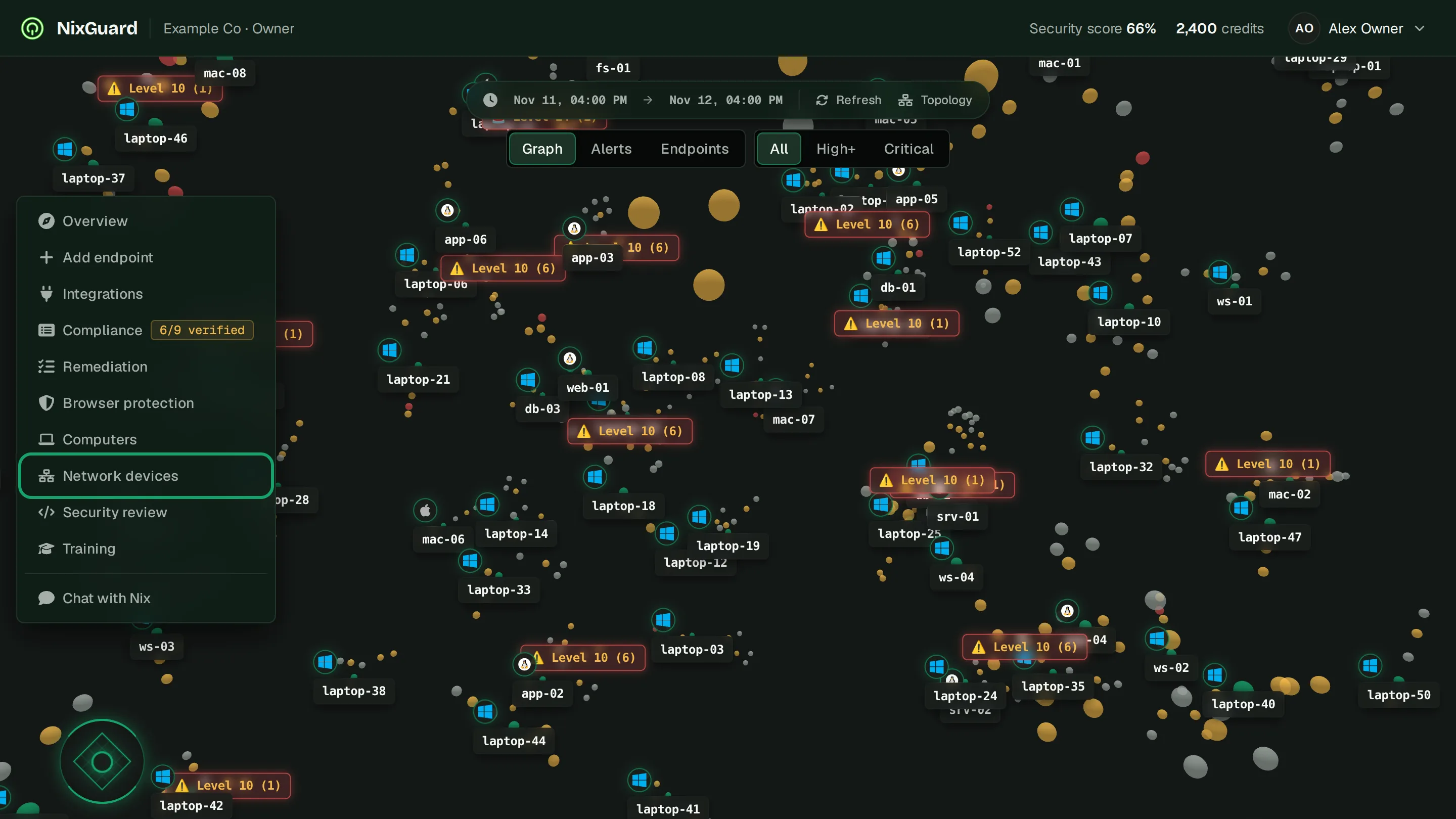
The NixGuard app, with example data.
2. Read the summary
At the top: how many Devices, how many are At risk, how many are New this week, and the Last scan, with the computer that ran it.NixGuardNetwork devices
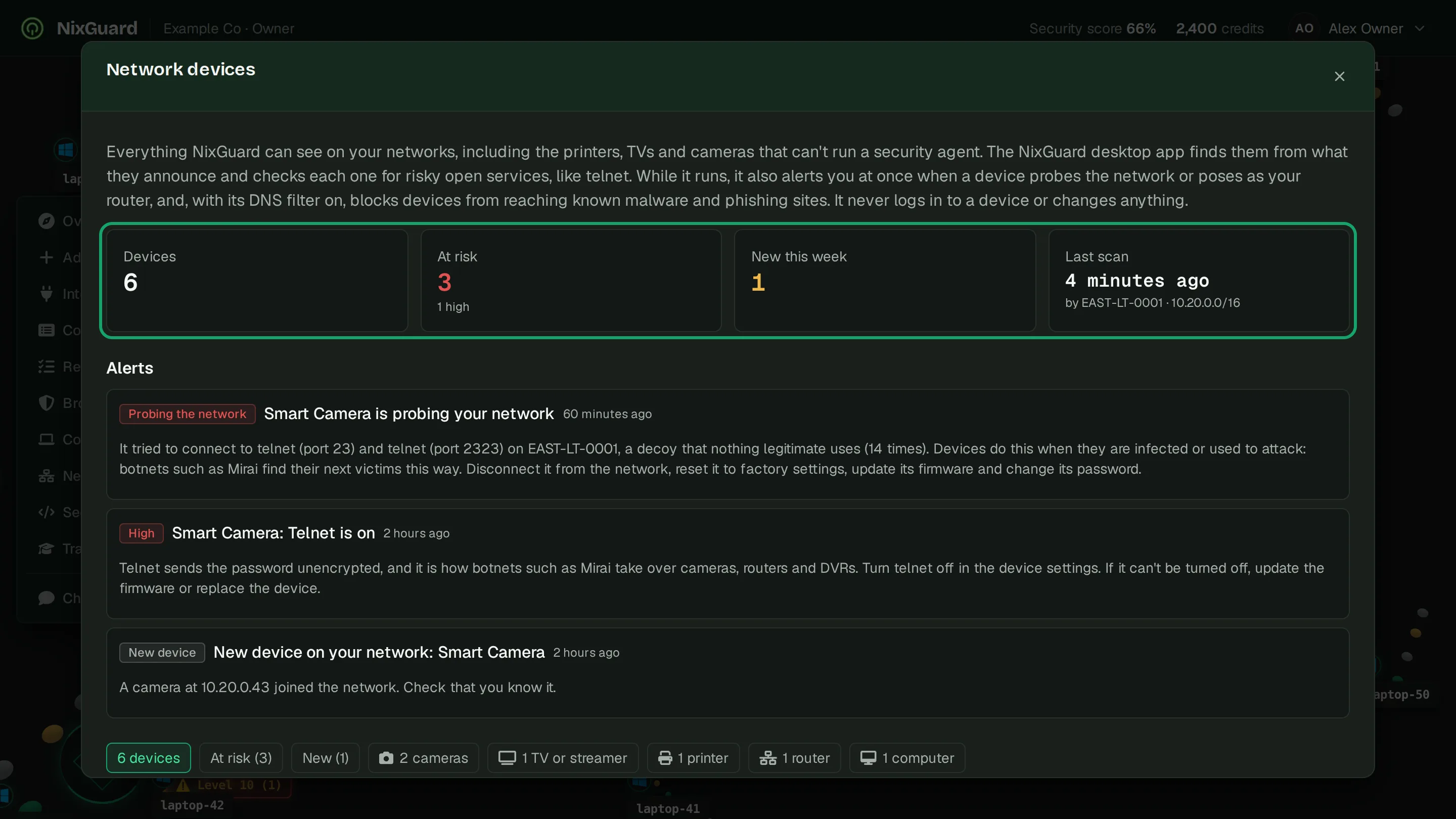
The NixGuard app, with example data.
3. Check the alerts
Alerts lists what happened: a new device joined, a device showed a new risk, a device probed the network or posed as your router, or the DNS filter blocked a lookup. Each alert says what to do.NixGuardNetwork devices
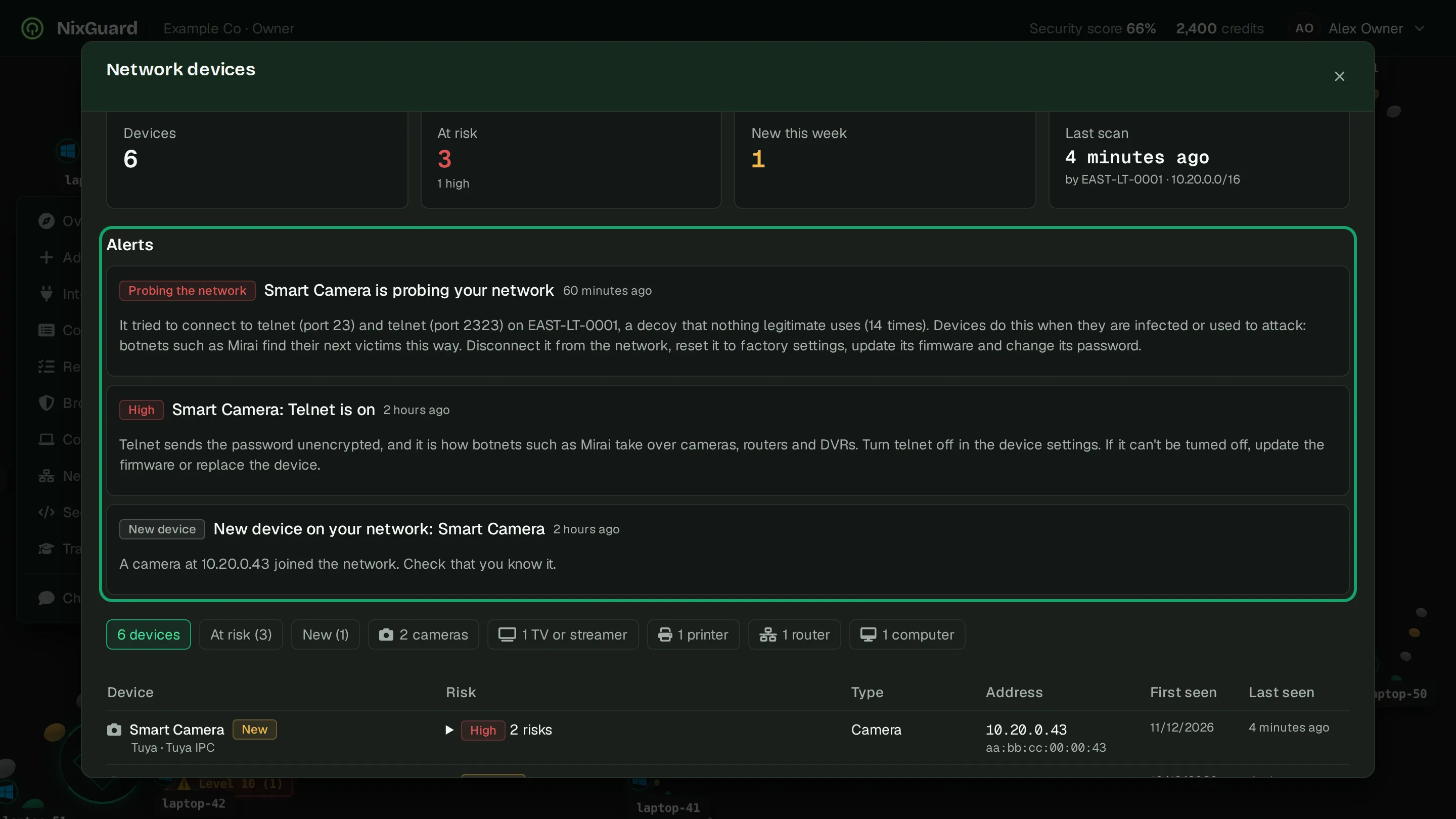
The NixGuard app, with example data.
4. Fix a risk
In the device list, open a device's Risk to read each risky service it found, why it matters and, after Fix:, how to fix it.NixGuardNetwork devices
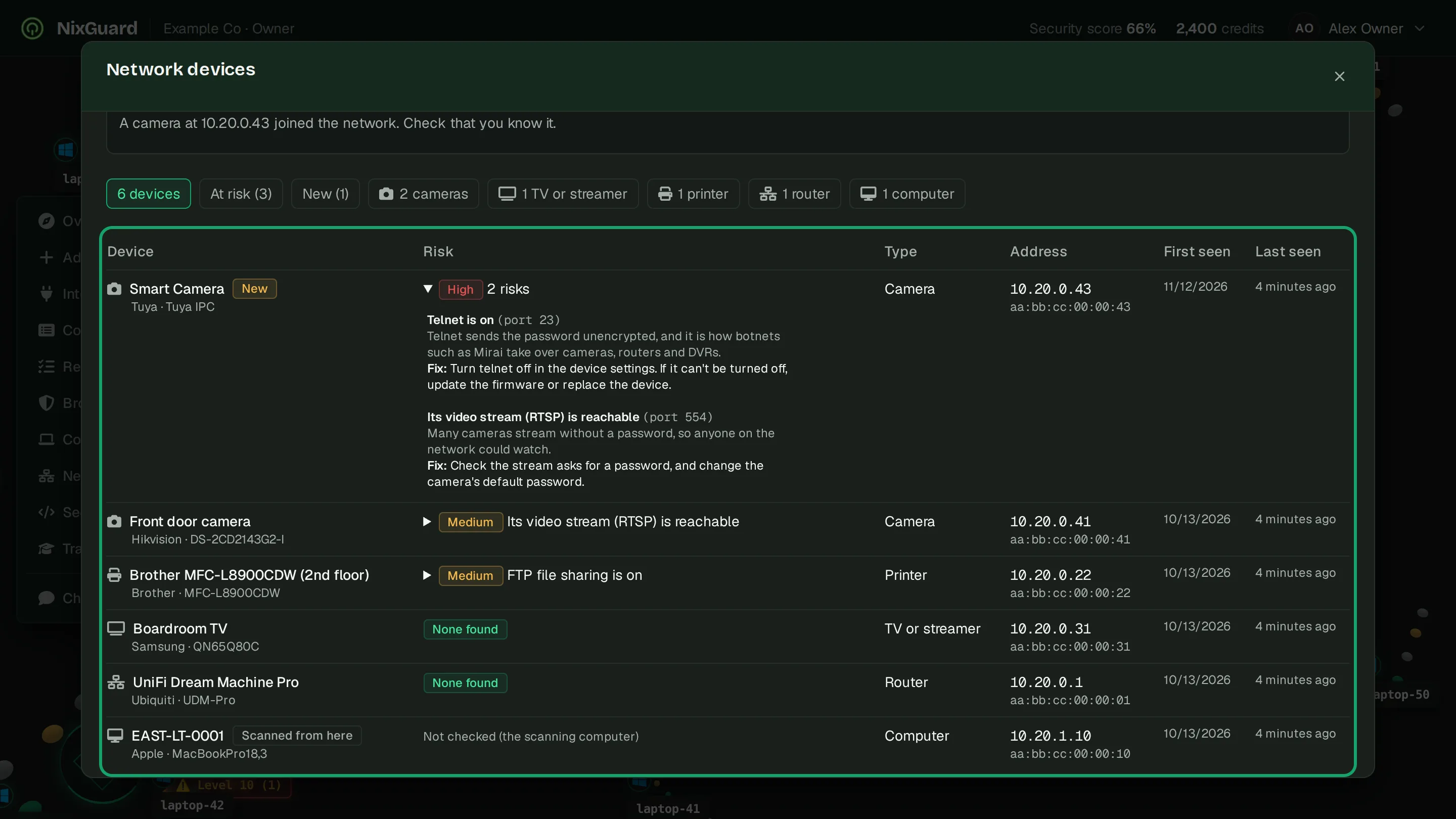
The NixGuard app, with example data.